PS2 BIOS Download — All Regions for PCSX2 and AetherSX2
You installed the emulator. You found your game. You clicked play — and got this instead:
“No BIOS file found.”
You are not doing anything wrong. PS2 emulators ship without a BIOS because the BIOS belongs to Sony, not the emulator. Until you add one, no PS2 game will boot. That is the only thing standing between you and one of the greatest game libraries ever made.
Below you will find BIOS files for every PS2 region, a plain-English explanation of which one you need, exact setup steps, and fixes for every common error.
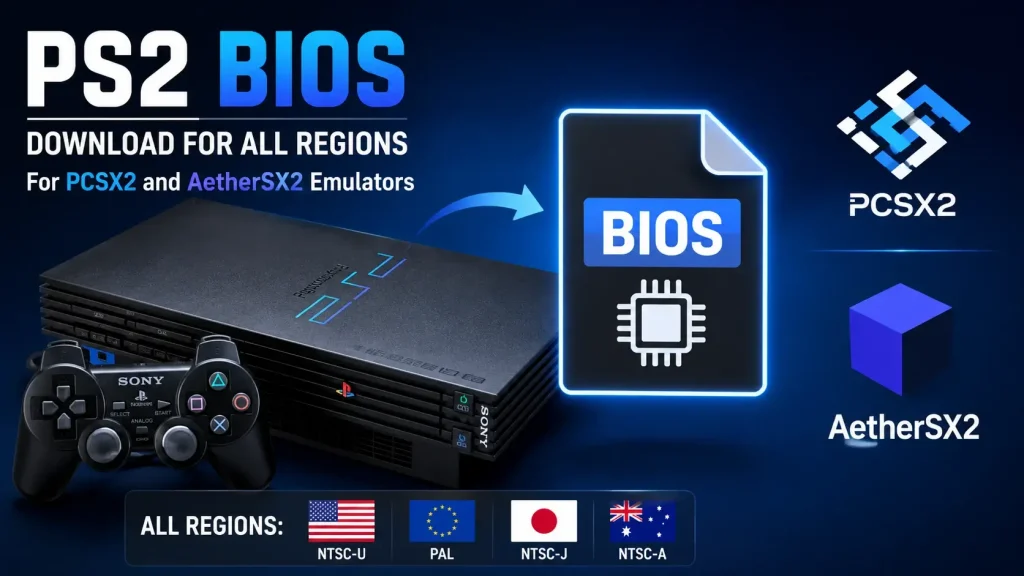
Download PS2 BIOS Files
Pick the file that matches your games. Not sure? Grab the full pack — it has every region and takes up under 20 MB.
| Region | Format | SCPH models | Best for | Download |
|---|---|---|---|---|
| USA (NTSC-U) | NTSC 60Hz | SCPH-39001, SCPH-70012 | USA & Canada games | Download |
| Europe (PAL) | PAL 50Hz | SCPH-50003, SCPH-75004 | UK, EU, Australia games | Download |
| Japan (NTSC-J) | NTSC 60Hz | SCPH-10000, SCPH-18000 | Japanese exclusives | Download |
| China (NTSC-C) | NTSC-C / PAL | SCPH-70000 | China-region titles | Download |
| Full Pack | All | Every model above | Mixed game libraries | Download |
Already downloaded? Head straight to our PS2 BIOS installation guide.
PS2 BIOS File Details at a Glance
| Detail | Information |
|---|---|
| File name | PS2 BIOS (regional .bin files) |
| File type | .bin — with .nvm, .mec, .erom companion files |
| Single region size | Around 4 MB |
| Full pack size | Around 16–20 MB |
| Compression | ZIP — must be extracted before use |
| Works with | PCSX2, AetherSX2, NetherSX2, RetroArch, EmuDeck, ArmSX2, DamonPS2 |
| Supported systems | Windows, macOS, Linux, Android, Steam Deck |
| Regions available | NTSC-U, PAL, NTSC-J, NTSC-C |
| Cost | Free |
What Is a PS2 BIOS?
BIOS stands for Basic Input/Output System. It is the small piece of software built into every real PlayStation 2 console.
The moment you press the power button on a real PS2, the BIOS is the first thing to run. It wakes up the hardware, checks the disc drive, reads the memory card, and shows you that famous startup animation before handing control over to your game.
A simple way to think about it: the emulator is the car. The BIOS is the key. You can have a perfect car sitting in your driveway, but without the key, the engine never turns over.
Emulators like PCSX2 and AetherSX2 recreate the PS2’s hardware in software. What they cannot recreate is Sony’s own startup code — that is copyrighted. So the emulator asks you to supply it.
Why Do You Need a PS2 BIOS?
Here is what the BIOS actually handles every time you play:
- Starts up the virtual hardware — sets up the Emotion Engine (CPU), Graphics Synthesizer (GPU), SPU2 (sound chip) and I/O processor
- Reads the disc — checks the game file and confirms its format before loading
- Manages memory cards — creates, reads and writes your save files
- Handles controllers — recognises DualShock 2 inputs and other peripherals
- Runs the system menu — the screen where you set language, date, time and display options
- Enables advanced emulator features — save states, widescreen patches and cheat support all depend on a working BIOS
- Keeps things stable mid-game — background tasks like save syncing run through the BIOS
Without it, your emulator has no idea how a PlayStation 2 is supposed to behave. It will not even reach the loading screen.
PS2 BIOS vs PS2 ROM: What’s the Difference?
People mix these up constantly, so let’s clear it up.
| PS2 BIOS | PS2 ROM / ISO | |
|---|---|---|
| What it is | The console’s system firmware | A copy of a single game disc |
| How many you need | One (or one per region) | One per game |
| Typical size | Around 4 MB | 1 GB to 8 GB |
| File type | .bin | .iso, .bin/.cue, .chd |
| Purpose | Makes the emulator behave like a PS2 | Gives you something to play |
In short: the BIOS starts the machine. The ROM is the game you put in it. You need both, and they are completely different files.
PS2 BIOS Regions Explained
Sony sold the PS2 in different regions with different BIOS versions. Each one matches that region’s television standard and language settings.
USA — NTSC-U
- Covers: United States and Canada
- Video standard: NTSC, 60Hz refresh rate
- Common models: SCPH-39001 (v1.60), SCPH-70012 (v2.00)
- Menu language: English
- Why it matters: this is the most widely used BIOS in the emulation community. Almost every tutorial, preset and compatibility report online assumes NTSC-U.
- Good for: GTA San Andreas, God of War, Final Fantasy X, Tony Hawk’s Pro Skater, most North American releases
Europe — PAL
- Covers: UK, Europe, Australia, parts of Asia and Africa
- Video standard: PAL, 50Hz refresh rate
- Common models: SCPH-50003 (v1.70), SCPH-75004 (v2.00)
- Menu language: multi-language — English, French, Spanish, German, Italian and more
- Why it matters: PAL games were built around a 50Hz display. Running them on an NTSC BIOS can cause speed and timing oddities.
- Good for: Pro Evolution Soccer, PAL-exclusive sports titles, any UK or EU release
Japan — NTSC-J
- Covers: Japan and nearby Asian markets
- Video standard: NTSC, 60Hz refresh rate
- Common models: SCPH-10000 (v1.00), SCPH-18000 (v1.01)
- Menu language: Japanese
- Why it matters: SCPH-10000 was the very first PS2 BIOS ever released, back in March 2000. It is historically interesting but has weaker support for later games — SCPH-18000 is the safer pick.
- Good for: Japanese exclusives, original Japanese releases of Ico, Katamari Damacy, Dragon Quest VIII
China — NTSC-C
- Covers: mainland China
- Video standard: NTSC-C / PAL depending on the unit
- Common model: SCPH-70000
- Why it matters: the least common version, but necessary for a small number of China-region titles
- Good for: Chinese-market releases only
NTSC vs PAL: What It Actually Means for You
| Feature | NTSC (USA, Japan) | PAL (Europe, Australia) |
|---|---|---|
| Refresh rate | 60 Hz | 50 Hz |
| Standard resolution | 480i | 576i |
| Frame output | Up to 60 FPS | Up to 50 FPS |
| Regions covered | North America, Japan, parts of Asia | Europe, UK, Australia, Africa |
| Typical feel | Faster, smoother motion | Slightly slower, taller picture |
The practical takeaway: many PS2 games released in Europe actually run about 17% slower than their US versions, because they were converted from 60Hz to 50Hz. If you have the choice, the NTSC-U version of a game usually plays better.
PS2 SCPH Models Explained (Fat vs Slim)
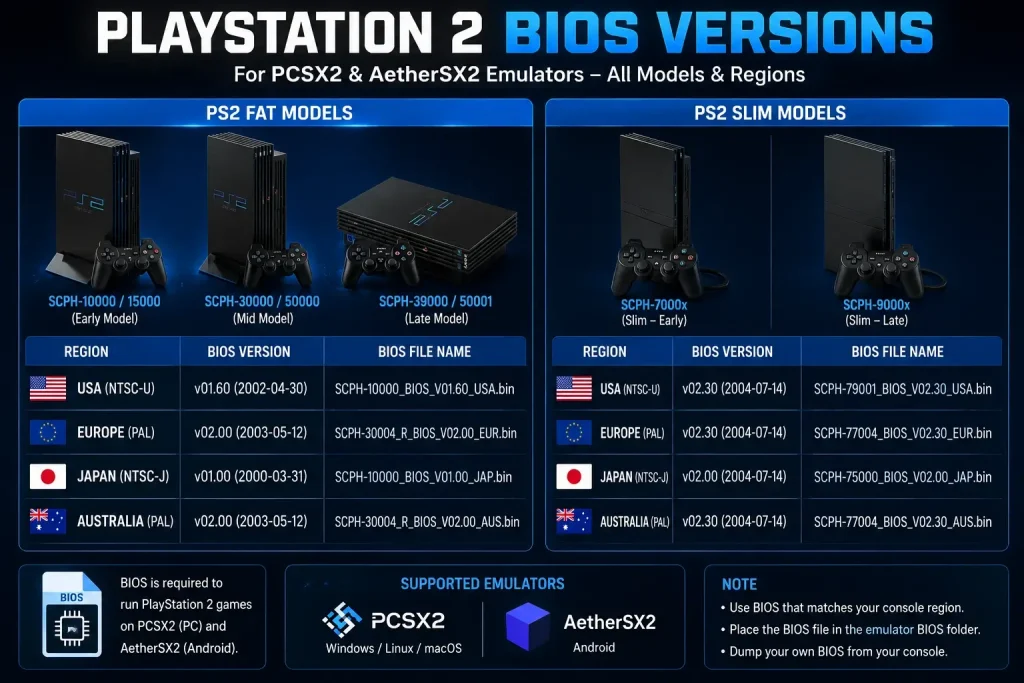
Sony built the PS2 from 2000 to 2013. Across those thirteen years the hardware changed several times, and each revision shipped a different BIOS version. The model code always starts with SCPH.
| Model range | Era | BIOS version | Notes |
|---|---|---|---|
| SCPH-10000 – 18000 | Launch (2000) | v1.00 – v1.01 | Japan only. First ever PS2 BIOS. Limited support for later games. |
| SCPH-30000 – 39000 | Fat, mid-gen | v1.20 – v1.60 | The most widely used range in emulation. Very stable. |
| SCPH-50000 – 55000 | Fat, late | v1.70 – v1.90 | Better disc handling and hard drive support. |
| SCPH-70000 – 90000 | Slim (2004+) | v2.00 – v2.30 | Faster boot, revised architecture. Very reliable with emulators. |
Does Fat vs Slim Matter?
For most people, no. Both work fine in emulators.
Where it does matter:
- A handful of very early PS2 games behave better on an early BIOS
- A few late releases prefer a v2.00 or newer BIOS
- Slim BIOS versions boot slightly faster inside emulators
💡 Our recommendation: SCPH-39001 (USA v1.60) and SCPH-70012 (USA v2.00) are the two most reliable BIOS files across the entire PS2 library. If you only ever install one, make it SCPH-39001.
Want the full breakdown of every model? See our guide on PS2 BIOS versions and SCPH models.
Which PS2 BIOS Should You Use?
The rule is simple: match your BIOS region to your game region.
| Your situation | Use this BIOS |
|---|---|
| Playing USA games on PC or Android | SCPH-39001 or SCPH-70012 (NTSC-U) |
| Playing European or Australian games | SCPH-50003 or SCPH-75004 (PAL) |
| Playing Japanese exclusives | SCPH-18000 (NTSC-J) |
| Playing Chinese releases | SCPH-70000 (NTSC-C) |
| Not sure at all | SCPH-39001 — the safest default |
| Mixed library from several regions | Download the full pack |
How to Find Your Game’s Region
Every PS2 game has a serial code. The first four letters tell you where it came from:
| Serial prefix | Region |
|---|---|
| SLUS / SCUS | USA & Canada |
| SLES / SCES | Europe, UK, Australia |
| SLPS / SLPM / SCPS | Japan |
| SLKA / SCKA | Korea |
| SLAJ / SCAJ | Asia (general) |
| SLPN | China |
You can find the serial printed on the disc, in the ISO filename, or by right-clicking the game inside PCSX2 and opening Properties.
Can You Install Multiple BIOS Files?
Yes — and you should.
- Put every regional .bin file in the same folder
- Your emulator scans the folder and lists them all
- Switch between them in two clicks from the settings menu
- There is no performance cost and no conflict
For a deeper comparison of every version, read which PS2 BIOS to use.
What’s Inside the Download?
When you extract the ZIP, you will see several files. Here is what each one does:
| File | What it is | Needed? |
|---|---|---|
| .bin | The main BIOS ROM — the core file | Essential |
| .nvm | Stores region, language and console settings | Recommended |
| .mec | MechaCon firmware — controls the disc drive | Recommended |
| .erom | DVD player ROM | Optional |
| .rom1 | DVD player firmware | Optional |
| .rom2 | Chinese language ROM (Chinese consoles only) | Optional |
Two rules to follow:
- Keep all files together in one folder. Only the .bin is essential, but the companions sit quietly alongside it and prevent rare edge-case problems.
- Do not rename them. The companion files must share the same base name as the .bin. Rename one and the pairing breaks.
Supported Emulators
Every BIOS file on this site works with all major PS2 emulators. Only the folder path changes between them.
| Emulator | Platform | BIOS required? | Best for |
|---|---|---|---|
| PCSX2 | Windows, macOS, Linux | Yes | The gold standard. Best compatibility, upscaling to 4K. |
| AetherSX2 | Android | Yes | The strongest Android option. Near-desktop performance. |
| NetherSX2 | Android | Yes | Community build of AetherSX2 — ads removed, features unlocked. |
| RetroArch | PC, Android, iOS | Yes | Multi-system front-end using the LRPS2 core. |
| EmuDeck | Steam Deck, Windows | Yes | Automatic setup wrapper around PCSX2. |
| ArmSX2 | Android, iOS | Yes | Newer ARM64 fork. Still developing. |
| DamonPS2 | Android | Yes | Works, but ad-heavy with paid features. |
| Play! | Windows, Android, iOS | No | Runs without a BIOS, but much lower compatibility. |
A note on AetherSX2: it is no longer on the Google Play Store. The developer stepped away after receiving online abuse. The app still works perfectly and is widely available through community archives.
A note on iOS: PS2 emulation on iPhone and iPad is very limited. The main PS2 core needs x86 hardware, and Apple devices use ARM chips. Play! runs without a BIOS but supports far fewer games. For proper PS2 emulation on a phone, Android is the better platform today.
What You Need to Run PS2 Games
Before you download anything, check your device can actually handle emulation.
Windows, Mac and Linux (PCSX2)
| Minimum | Recommended | |
|---|---|---|
| CPU | Dual-core with SSE4.1 support | Modern quad-core, strong single-thread speed |
| RAM | 4 GB | 8 GB or more |
| Graphics | DirectX 11 / OpenGL 3.3 / Vulkan capable | Dedicated GPU with Vulkan support |
| Storage | 20 MB for BIOS, 1–8 GB per game | SSD for faster loading |
The most important factor is single-core CPU speed. PS2 emulation leans heavily on one thread. A fast four-core chip will beat a slow sixteen-core one every time.
Android (AetherSX2 / NetherSX2)
| Minimum | Recommended | |
|---|---|---|
| Chipset | Snapdragon 845 / Dimensity 1000 class | Snapdragon 8-series or equivalent |
| RAM | 4 GB | 6 GB or more |
| Android version | Android 9 | Android 12 or newer |
Lighter 2D and early 3D games run on modest hardware. Demanding titles like God of War II need a genuinely powerful phone.
How to Install Your PS2 BIOS
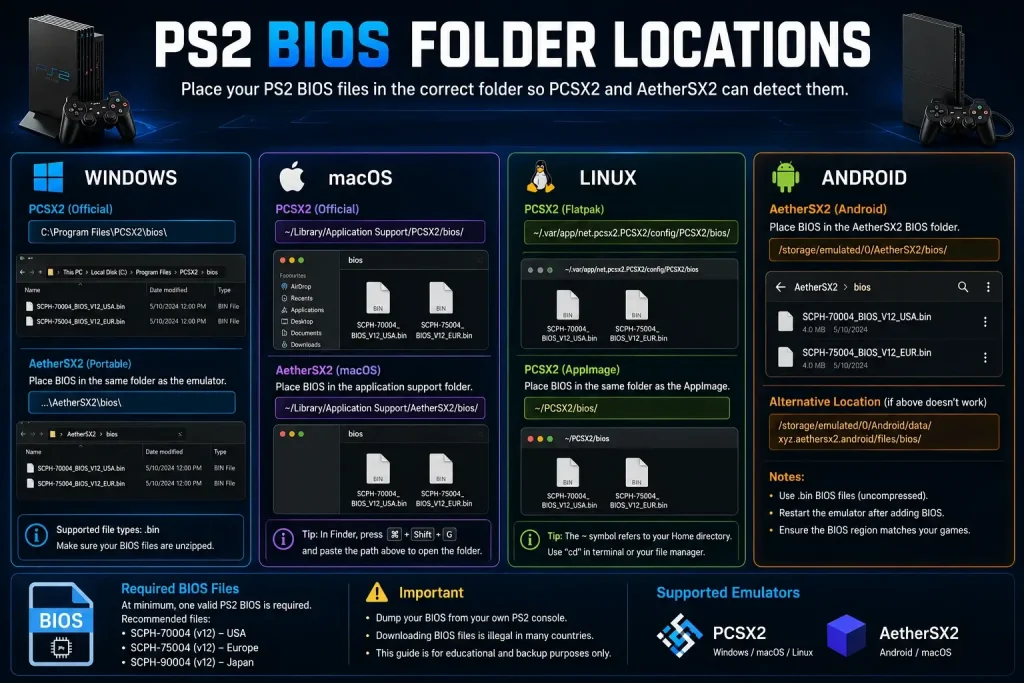
The process takes about five minutes on any device.
- Download the BIOS file for your region from the table above
- Extract the ZIP completely — this is where most people get stuck
- Copy the .bin file into your emulator’s BIOS folder
- Open your emulator and go to the BIOS settings
- Point it at your folder and select the version you want
- Save and load a game
Quick Folder Reference
| Device | Emulator | BIOS folder |
|---|---|---|
| Windows | PCSX2 | C:\Users\[Name]\Documents\PCSX2\bios\ |
| macOS | PCSX2 | ~/Library/Application Support/PCSX2/bios/ |
| Linux | PCSX2 | ~/.config/PCSX2/bios/ |
| Android | AetherSX2 | Any folder — you pick it in the app |
| Steam Deck | EmuDeck | /home/deck/Emulation/bios/ |
| Any device | RetroArch | system/pcsx2/bios/ (lowercase) |
⚠️ The single biggest mistake: leaving the BIOS inside the ZIP file. Every emulator reads the raw .bin directly. A zipped BIOS will never be detected, no matter which folder you put it in.
📖 Read the full step-by-step installation guide → — covers PCSX2, AetherSX2, NetherSX2, RetroArch, Steam Deck, EmuDeck, iPhone and Xbox with exact paths for each.
How to Check Your BIOS Is Working
Do not assume it worked. Here is how to confirm it in ten seconds:
- PCSX2: go to Settings > BIOS. Your file should appear with its full version name, such as SCPH-39001 v1.60 (07/02/2002) Console. If PCSX2 can read that version string, the file is valid.
- AetherSX2 / NetherSX2: go to Settings > Core Settings > BIOS. The region label appears next to your file.
- EmuDeck: open Tools and Stuff > BIOS Checker. Look for a green tick beside PlayStation 2.
The ultimate test: turn off Fast Boot in PCSX2 and start the emulator with no game loaded. If your BIOS is installed correctly, you will see the PlayStation 2 startup animation and the browser menu — exactly like a real console.
Common PS2 BIOS Errors and How to Fix Them
“BIOS Not Found” or “No BIOS Selected”
Cause: the file is still zipped, or your emulator is pointing at the wrong folder.
Fix:
- Confirm the file is extracted and ends in .bin
- Reselect the folder manually in your emulator settings, even if the path looks correct
- Make sure the folder holds the .bin directly, not inside another folder
“Not a Valid PS2 BIOS”
Cause: the file is corrupted, incomplete, or it is actually a PS1 BIOS.
Fix:
- Check the file size — it should be roughly 4 MB
- A PS1 BIOS is only around 512 KB, so if yours is that small, you grabbed the wrong one
- Download again on a stable connection
Black Screen After Loading a Game
Cause: usually a region mismatch, sometimes a damaged game file.
Fix:
- Check your game’s serial prefix and switch to the matching BIOS
- Try Full Boot instead of Fast Boot
- Test a different game — if that one works, the problem is your game file
Lag, Stuttering or Low FPS
Cause: graphics settings beyond what your hardware can handle.
Fix:
- Drop the internal resolution to 2x
- Switch the renderer to Vulkan
- Turn off anti-aliasing and texture filtering
- Close background apps
- On a laptop, set the power plan to High Performance
Controller Not Detected
Cause: the device is not recognised at system level.
Fix:
- Confirm your OS or phone sees the controller first
- Inside the emulator, open controller settings and run Automatic Mapping
- Try a wired connection if Bluetooth is unreliable
Android File Picker Shows Nothing
Cause: Android storage permissions are blocking the emulator.
Fix:
- Grant All Files Access in Settings > Apps > [emulator] > Permissions
- Move the BIOS to internal storage rather than an SD card
Your Antivirus Deleted the File
Cause: a false positive. Some antivirus tools flag emulator files as suspicious.
Fix: check the quarantine folder, restore the file, and add your BIOS folder to the exclusions list.
For detailed walkthroughs of every error, see our guide on fixing PCSX2 BIOS errors.
Tips for Smoother Gameplay
- Switch to Vulkan. On both PCSX2 and AetherSX2 it outperforms OpenGL on most modern hardware.
- Start at 2x internal resolution. 4x looks sharper but needs real GPU power. Step up only if 2x stays smooth.
- Use Fast Boot day to day. It skips the startup animation. Save Full Boot for games that need the memory card screen.
- Match BIOS and game region. Five seconds of effort that prevents audio speed issues and save failures.
- Keep every BIOS in one folder. Name it clearly, point your emulator there once, and you are set for any region.
- Update your emulator. PCSX2 ships frequent updates that improve compatibility with zero effort from you.
- Android: enable High Performance mode. Many phones throttle their chips by default.
- Check compatibility lists. The official PCSX2 compatibility list tells you which games run perfectly before you spend time on them.
Is Downloading a PS2 BIOS Legal?
Let’s be straight about this.
The PS2 BIOS is copyrighted software owned by Sony Interactive Entertainment. The only method that is legal everywhere is dumping the BIOS from a PlayStation 2 console you own yourself. This is the approach the PCSX2 team recommends in their own official documentation, and it carries no legal grey area.
Downloading a BIOS from a third-party site may breach copyright law depending on where you live — even if you already own a console. Copyright rules differ from country to country, so the responsibility for staying compliant sits with you.
If you own a PS2, dumping your own BIOS is genuinely easy. It takes about 20 minutes and works on both modded and unmodded consoles. Our guide on how to dump a PS2 BIOS from your own console walks through the whole process.
We host these files for preservation and educational purposes, aimed at people who already own the original hardware. If you believe any file here infringes your rights, our DMCA policy explains how to request removal.
Why Download From Us?
- Every region in one place — NTSC-U, PAL, NTSC-J and NTSC-C, individually or as a full pack
- Complete file sets — .bin plus the .nvm, .mec and .erom companion files, not just a bare ROM
- Tested across emulators — verified on PCSX2, AetherSX2, NetherSX2 and RetroArch
- Fast, direct downloads — no waiting timers, no link shorteners, no survey walls
- Real setup guides — step-by-step instructions with exact folder paths for every platform
- Honest information — we tell you what is legal, what actually works, and what does not. No inflated claims.
- No sign-up required — no email, no account, no paywall
Best PS2 Games to Play After Setup
Once your BIOS is working, here is where to start:
- God of War I and II — still stunning, and PCSX2 upscales them beautifully
- Grand Theft Auto: San Andreas — the definitive open-world PS2 experience
- Shadow of the Colossus — runs far better on emulator than it ever did on hardware
- Final Fantasy X — a good test of a correctly configured BIOS
- Metal Gear Solid 3: Snake Eater — demanding, but worth it
- Kingdom Hearts I and II — excellent emulator compatibility
- Resident Evil 4 — the PS2 version has exclusive content
- Tekken 5 — flawless at high internal resolutions
- Burnout 3: Takedown — never re-released, so emulation is the only way to play it
- Ico — short, beautiful, and light on hardware
See our full ranked list with performance notes: best PS2 games of all time.
FAQs
Ready to Play
The PlayStation 2 sold more than 155 million units and built one of the finest game libraries in history. Thanks to emulation, all of it is still playable — and often better than it ever looked on the original hardware.
You only need three things: an emulator, a BIOS file, and your games. The BIOS is the piece most people get stuck on, and now you have it.
Your next steps: